mirror of
https://github.com/zhigang1992/reactfire.git
synced 2026-06-11 08:14:00 +08:00
 2b6f8e882b
* Update import step to add SuspenseWithPerf

* Added review comment: Use function component term

* Corrected import terminology
198 lines
6.0 KiB
Markdown
198 lines
6.0 KiB
Markdown
# Getting Started with ReactFire
|
|
|
|
⚛ + 🔥 = 🌯
|
|
|
|
This quickstart shows you how to connect your React web app to **Cloud Firestore**, listen for its data, and display the data in _real time_. We'll also configure **Firebase Performance Monitoring** so you can get some performance stats.
|
|
|
|
Let's build a web app that displays, in _real time_, the tastiness of a burrito. Yum!
|
|
|
|
To see the completed app, check out [this StackBlitz workspace](https://stackblitz.com/fork/reactfire-sample).
|
|
|
|
## 1. Create a document in Cloud Firestore
|
|
> If your project doesn't have a Cloud Firestore database instance yet, check out [these instructions](https://firebase.google.com/docs/firestore/quickstart#create) to create a new instance. Please initialize it in _locked mode_.
|
|
|
|
1. Go to the _Database_ tab in the [Firebase console](https://console.firebase.google.com).
|
|
|
|
1. Add a document.
|
|
|
|
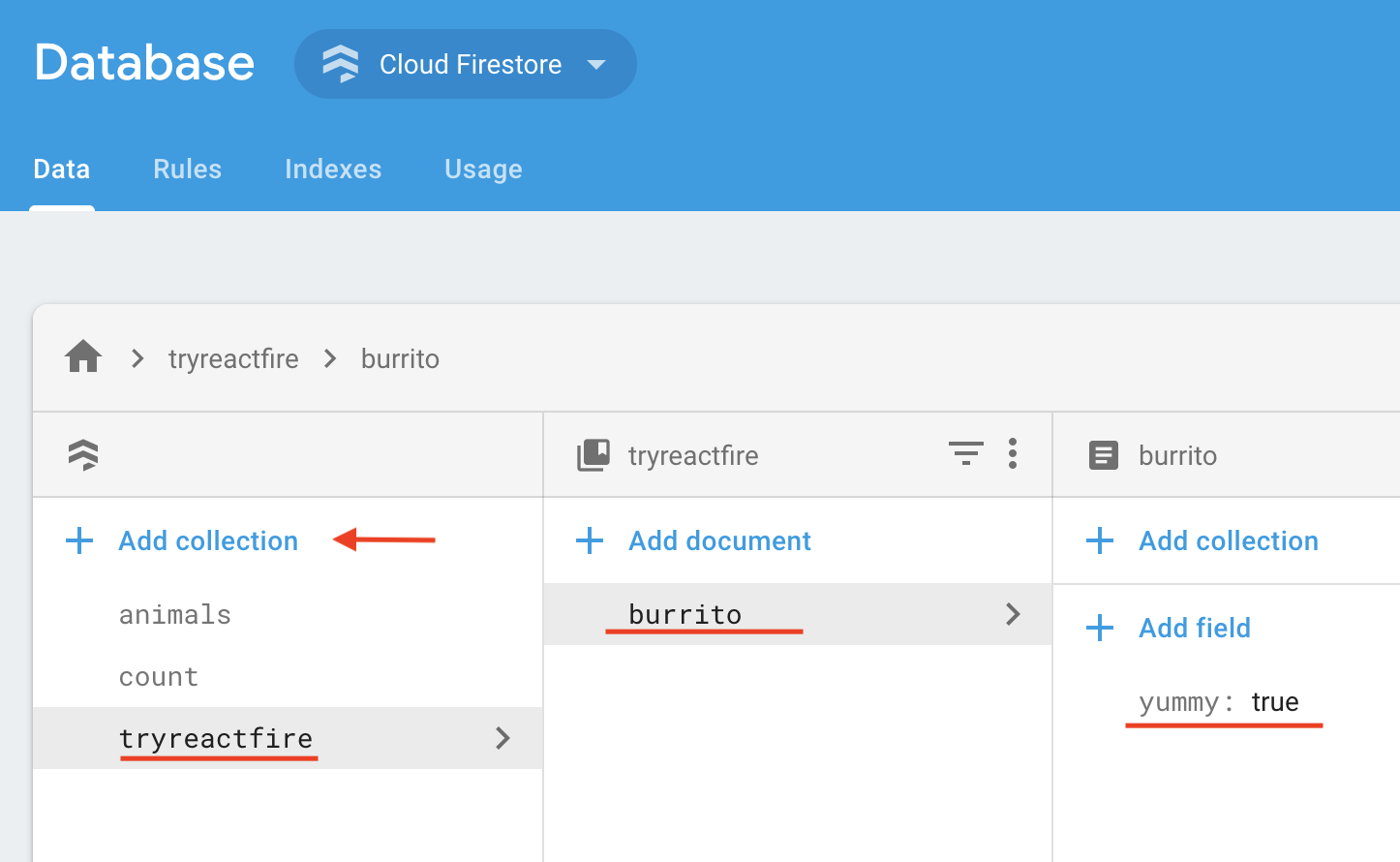
1. In the _Data_ tab of the console, click _Add Collection_
|
|
|
|
1. Name the collection **_tryreactfire_**
|
|
1. Add a document with ID **_burrito_** and boolean field `yummy: true`
|
|
|
|
|
|
|
|
1. Add security rules to your document.
|
|
|
|
1. In the _Rules_ tab of the console, add the following security rules:
|
|
|
|
```text
|
|
rules_version = '2';
|
|
service cloud.firestore {
|
|
match /databases/{database}/documents {
|
|
match /tryreactfire/burrito {
|
|
allow read, write: if true;
|
|
}
|
|
}
|
|
}
|
|
```
|
|
2. _Publish_ the rules.
|
|
|
|
## 2. Create a React App
|
|
|
|
> Prerequisite: make sure you have [Node.js](https://nodejs.org/en/) installed.
|
|
|
|
In a terminal, create a fresh React app in a directory of your choice.
|
|
|
|
```shell
|
|
npx create-react-app myapp
|
|
cd myapp
|
|
```
|
|
|
|
## 3. Install ReactFire and the Firebase SDK
|
|
|
|
> Ignore yarn/npm warnings.
|
|
|
|
```bash
|
|
yarn add firebase reactfire
|
|
|
|
# or
|
|
|
|
npm install --save firebase reactfire
|
|
```
|
|
## 4. Register your app with Firebase
|
|
|
|
1. In the center of the Firebase console's project overview page, click the Web icon to launch the setup workflow.
|
|
> If you've already added an app to your Firebase project, click _Add app_ to display the platform options.
|
|
|
|
1. Enter your app's nickname.
|
|
> Note: Firebase Hosting is not required for you to use Firebase products with your web app.
|
|
|
|
1. _Register_ the app.
|
|
|
|
1. Copy the Firebase configuration. This will be used in Step 4.
|
|
|
|
1. _Continue to Console_
|
|
|
|
## 5. Add Firebase to `index.js`
|
|
> Open the src directory and add code to index.js as described below.
|
|
|
|
1. Import from ReactFire
|
|
|
|
```js
|
|
//...
|
|
import { FirebaseAppProvider } from 'reactfire';
|
|
//...
|
|
```
|
|
|
|
1. Add the Firebase configuration
|
|
> Add the firebaseConfig constant and paste the configuration from Step 3.
|
|
|
|
```jsx
|
|
//...
|
|
const firebaseConfig = {
|
|
/* Paste your config object from Firebase console here */
|
|
};
|
|
//...
|
|
```
|
|
|
|
1. Wrap your app in a `FirebaseAppProvider`
|
|
> Replace the default render function.
|
|
|
|
```jsx
|
|
//...
|
|
ReactDOM.createRoot(document.getElementById('root')).render(
|
|
<FirebaseAppProvider firebaseConfig={firebaseConfig}>
|
|
<App />
|
|
</FirebaseAppProvider>
|
|
);
|
|
//...
|
|
```
|
|
|
|
## 6. Add the Burrito() function component to `App.js`
|
|
> Open the src directory and add code to App.js as described below.
|
|
|
|
1. Import from ReactFire
|
|
|
|
```js
|
|
//...
|
|
import { useFirestoreDocData, useFirestore, SuspenseWithPerf} from 'reactfire';
|
|
//...
|
|
```
|
|
|
|
1. Add a function component
|
|
|
|
```jsx
|
|
//...
|
|
function Burrito() {
|
|
// lazy load the Firestore SDK and create a document reference
|
|
const burritoRef = useFirestore()
|
|
.collection('tryreactfire')
|
|
.doc('burrito');
|
|
|
|
// subscribe to the doc. just one line!
|
|
const burrito = useFirestoreDocData(burritoRef);
|
|
|
|
// get the value from the doc
|
|
const isYummy = burrito.yummy;
|
|
|
|
return <p>The burrito is {isYummy ? 'good' : 'bad'}</p>;
|
|
}
|
|
//...
|
|
```
|
|
|
|
1. Render your component inside of a `Suspense` tag
|
|
|
|
> We need to do this because `useFirestoreDocData` throws a Promise while it is waiting for a response from Firestore. Suspense will catch the Promise and render `fallback` until the Promise is resolved.
|
|
|
|
Replace the `App` function with the following:
|
|
|
|
```jsx
|
|
//...
|
|
function App() {
|
|
return (
|
|
<div className="App">
|
|
{/*
|
|
SuspenseWithPerf behaves the same as Suspense,
|
|
but also automatically measures load times with the User Timing API
|
|
and reports it to Firebase Performance Monitoring
|
|
*/}
|
|
<SuspenseWithPerf
|
|
fallback={'loading burrito status...'}
|
|
traceId={'load-burrito-status'}
|
|
>
|
|
<Burrito />
|
|
</SuspenseWithPerf>
|
|
</div>
|
|
);
|
|
}
|
|
//...
|
|
```
|
|
|
|
## 7. Run your app!
|
|
|
|
1. Run your app.
|
|
```bash
|
|
yarn start
|
|
|
|
# or
|
|
|
|
npm run start
|
|
```
|
|
|
|
1. Edit the value of `yummy` in the _Database_ tab in the [Firebase console](https://console.firebase.google.com) and watch it update in real time in your app! 🔥🔥🔥
|
|
|
|
## _About Firebase Performance Monitoring_
|
|
|
|
`SuspenseWithPerf` will lazy load the Firebase Performance Monitoring library and report on on our custom trace, `load-burrito-status`, that we set in the `traceId` prop of `SuspenseWithPerf`. In addition, it will automatically measure [common performance stats](https://firebase.google.com/docs/perf-mon/automatic-web)!
|
|
|
|
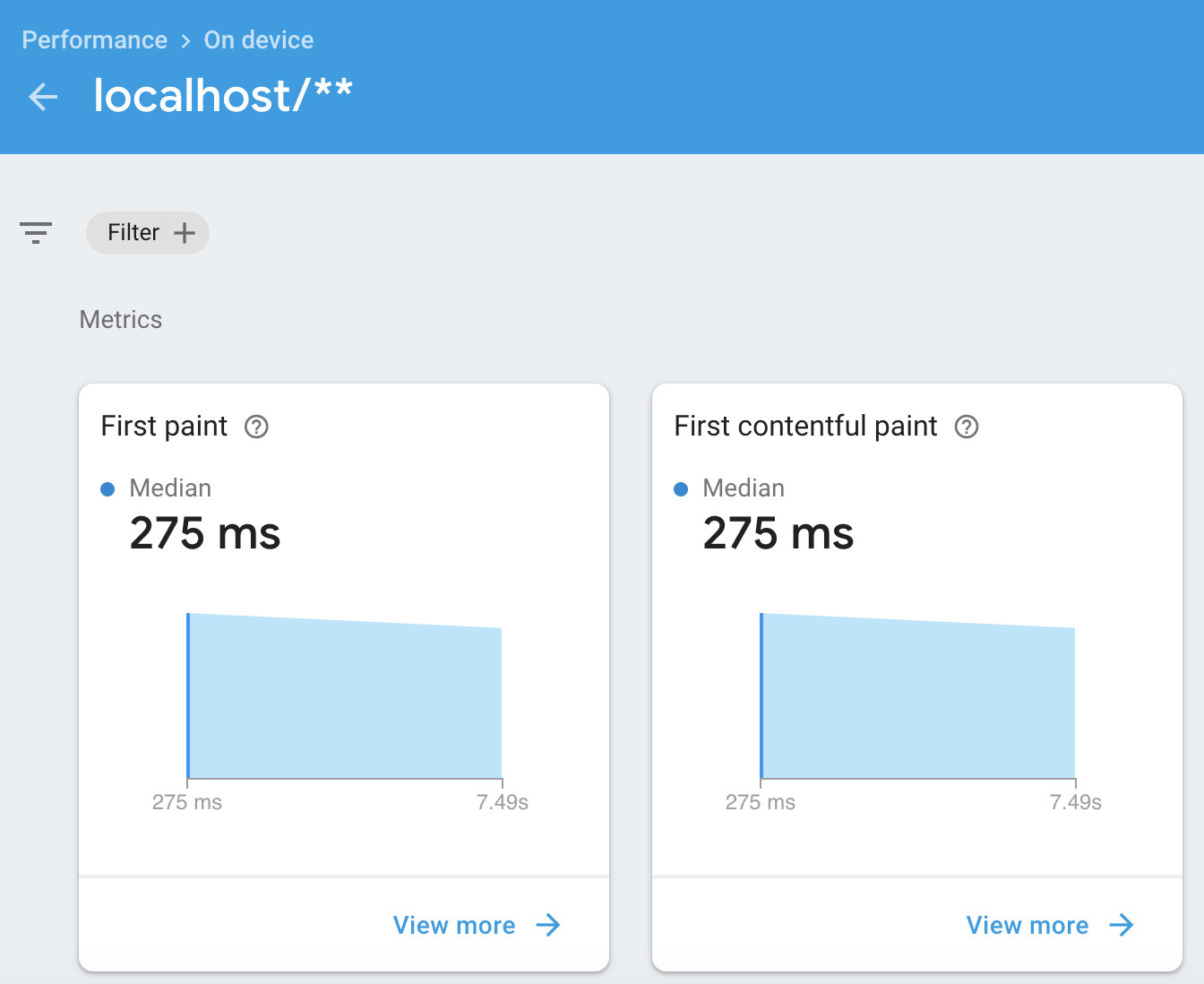
Note that Firebase Performance Monitoring can take about 12 hours to crunch your data and show it in the _Performance_ tab of the Firebase console.
|
|
|
|
This is an example of some of the stats in the Firebase Performance Monitoring console after 12 hours:
|
|
|
|
|
|
|
|
## _Next Steps_
|
|
|
|
To explore information on using ReactFire, check out [Common Use Cases](https://github.com/FirebaseExtended/reactfire/blob/master/docs/use.md).
|