mirror of
https://github.com/zhigang1992/synx.git
synced 2026-01-12 22:52:53 +08:00




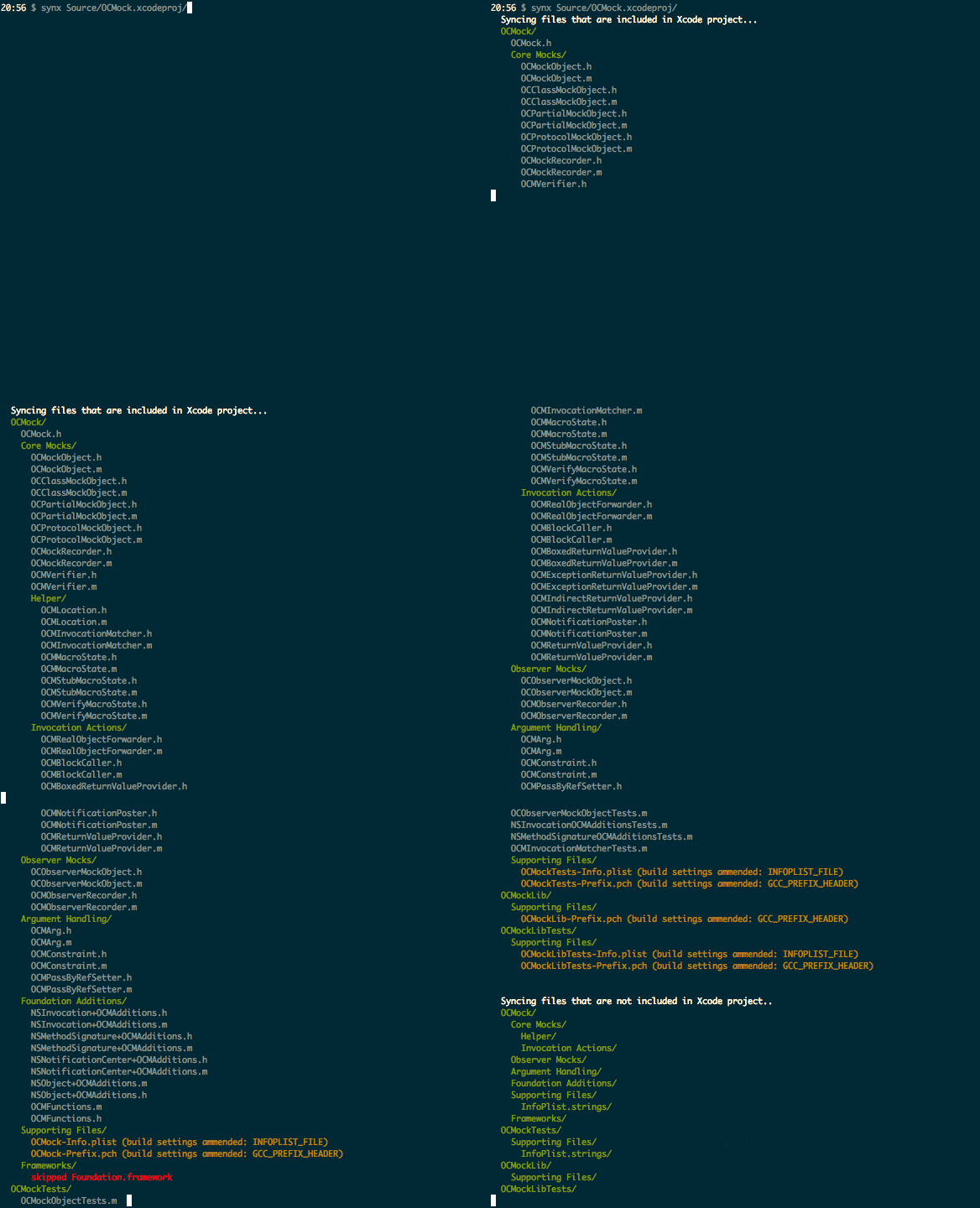
A command-line tool that automagically reorganizes your Xcode project folder.
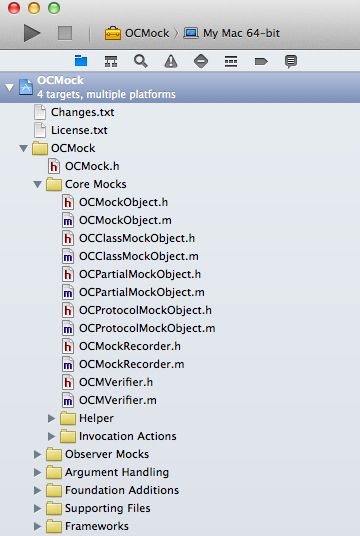
Xcode
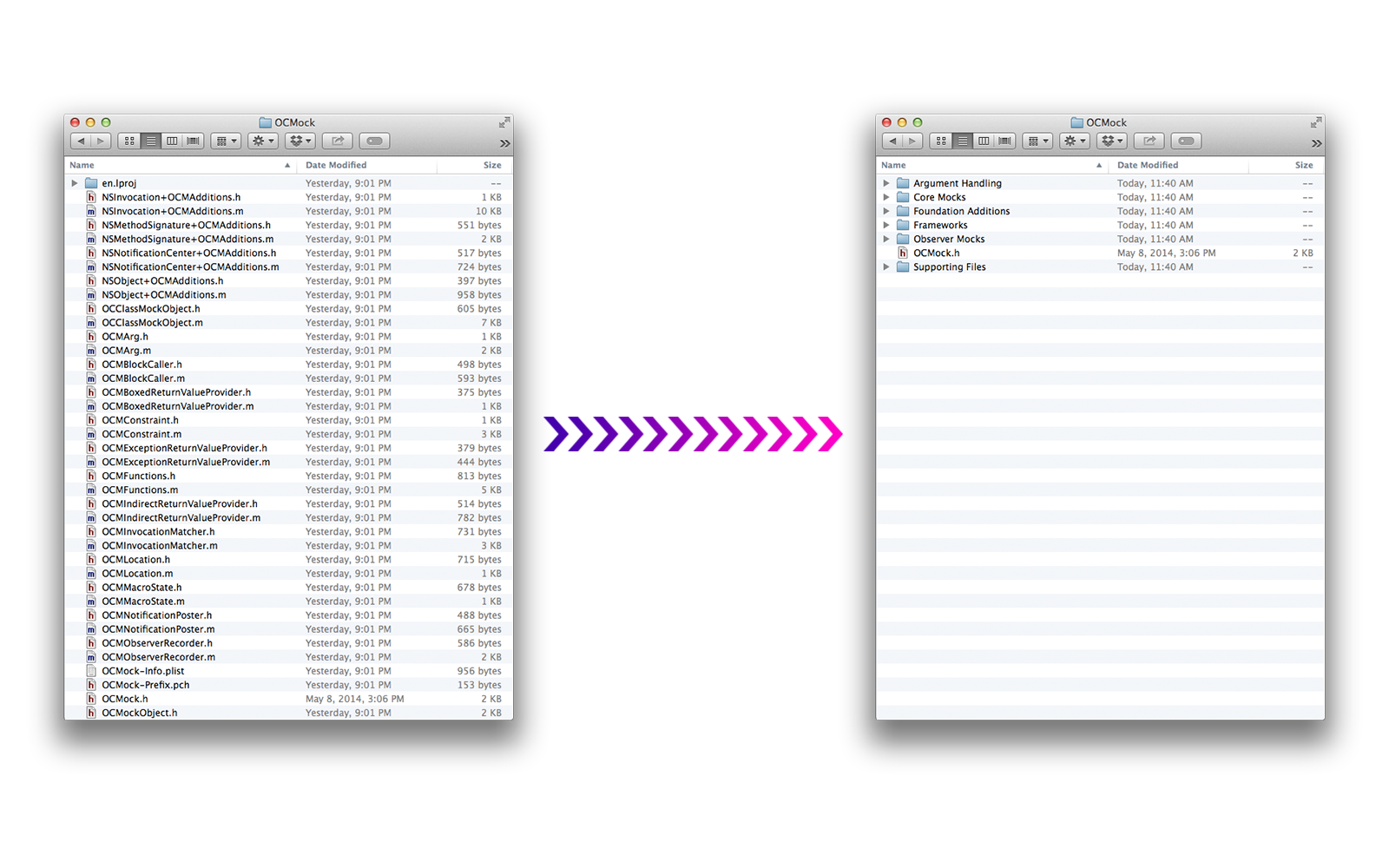
Finder
Installation
Add this line to your application's Gemfile:
gem 'synx'
And then execute:
$ bundle
Or install it yourself as:
$ gem install synx
Usage
Basic
WARNING: Make sure that your project is backed up through source control before doing anything
Execute the command on your project to have it reorganize the files on the file system:
$ synx path/to/my/project.xcodeproj
It may have confused cocoapods. Pod install, if you use them:
$ pod
You're good to go!
Advanced
Synx supports the following options:
  --prune, -p                   remove source files and image resources that are not referenced by the the xcode project
  --no-default-exclusions       doesn't use the default exclusions of /Libraries, /Frameworks, and /Products
  --exclusion, -e EXCLUSION     ignore an Xcode group while syncing
OCMock, for example, could have done:
$ synx -p -e=OCMock/Core -e=OCKMockTests Source/OCMock.xcodeproj
if they wanted to not sync the OCMock/Core and OCMockTests groups, and also remove (-p) any image/source files found by Synx that weren't ever referenced by any groups in Xcode.
Contributing
- Fork it ( https://github.com/[my-github-username]/synx/fork )
- Create your feature branch (
git checkout -b my-new-feature) - Commit your changes (
git commit -am 'Add some feature') - Push to the branch (
git push origin my-new-feature) - Create a new Pull Request