
16 KiB
react-native-popover-view



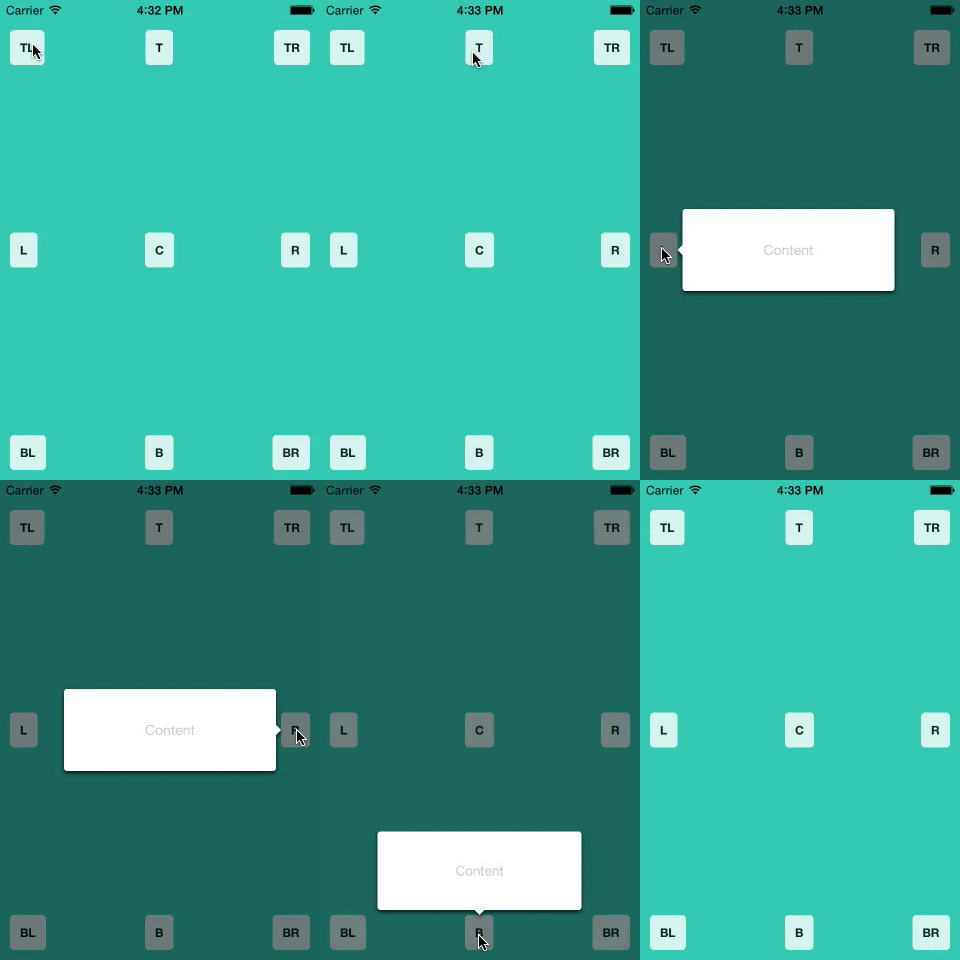
A well-tested, adaptable, lightweight <Popover> component for react-native. Great for use in Tablets; you can put entire views that you would normally show in a modal (on a smaller device) into a popover, optionally give it an anchor point, and have it float on top of all of the other views.
It is written entirely in JavaScript, but uses React Native's native driver for responsive animations, even when the JS thread is busy.
The <Popover> is able to handle dynamic content and adapt to screen size changes while showing, and will move out of the way for on-screen keyboards automatically.
Table of Contents
- Features
- Origins
- Demo
- Installation
- Standalone Usage
- Usage with React Navigation
- Contributing
- Credits
Popover Features
- Moves to avoid keyboard
- Ability to show from a view, from a rect, or float in center of screen
- Adapts to changing content size
- Automatically detects best placement on screen
- Moves to stay visible on orientation change or when entering split-screen mode
- (Optional) Integration with React Navigation
A Note on Origins
This is a fork of react-native-popover, originally created by Jean Regisser but since abandoned.
I have rebuilt most of the library from the ground up for improved handling of changing screen sizes on tablets (split-screen mode), a redesigned automatic placement algorithm, and ES6 compatibility.
Similar forks exist on Github (such as react-native-modal-popover), but this is the first to be published on NPM as far as I know.
Installation
npm i react-native-popover-view
or
yarn add react-native-popover-view
Standalone Usage
import Popover from 'react-native-popover-view'

...
  render (
    <Popover
      isVisible={this.state.isVisible} />
      <CustomElement />
    </Popover>
  )
Props
| Prop | Type | Optional | Default | Description |
|---|---|---|---|---|
| isVisible | bool | Yes | false | Show/Hide the popover |
| fromView | ref | Yes | null | The ref of the view that should anchor the popover. |
| fromRect | rect | Yes | null | Alternative to fromView. Rectangle at which to anchor the popover. |
| displayArea | rect | Yes | screen rect | Area where the popover is allowed to be displayed |
| placement | string | Yes | 'auto' | How to position the popover - top | bottom | left | right | auto. When 'auto' is specified, it will determine the ideal placement so that the popover is fully visible within displayArea. |
| onClose | function | Yes | Callback to be fired when the user taps the popover | |
| doneClosingCallback | function | Yes | Callback to be fired when the popover is finished closing (after animation) | |
| showInModal | bool | Yes | true | Whether the Popover should be encapsulated in the Modal view from RN, which allows it to show above all other content, or just be present in the view hierarchy like a normal view. |
| showArrow | bool | Yes | true | Whether the arrow that points to the rect (passing in as fromRect) is shown. If fromRect is null, the arrow will never be shown. |
| showBackground | bool | Yes | true | Whether the background behind the popover darkens when the popover is shown. |
If neither fromRect or fromView are provided, the popover will float in the center of the screen.
rect is an object with the following properties: {x: number, y: number, width: number, height: number}. You can create the object yourself, or import Popover, { Rect } from 'react-native-popover-view and create a rect by calling new Rect(x, y, width, height).
Full Example
import React, { Component } from 'react';
import Popover from 'react-native-popover-view';
import {
  AppRegistry,
  StyleSheet,
  Text,
  TouchableHighlight,
  View,
} from 'react-native';

class PopoverExample extends Component {
  state = {
    isVisible: false
  }

  showPopover() {
    this.setState({isVisible: true});
  }

  closePopover() {
    this.setState({isVisible: false});
  }

  render() {
    return (
      <View style={styles.container}>
        <TouchableHighlight ref={ref => this.touchable = ref} style={styles.button} onPress={this.showPopover}>
          <Text style={styles.buttonText}>Press me</Text>
        </TouchableHighlight>

        <Popover
          isVisible={this.state.isVisible}
          fromView={this.touchable}
          onClose={this.closePopover}>
          <Text>I'm the content of this popover!</Text>
        </Popover>
      </View>
    );
  }
});

var styles = StyleSheet.create({
  container: {
    flex: 1,
    alignItems: 'center',
    justifyContent: 'center',
    backgroundColor: 'rgb(43, 186, 180)',
  },
  button: {
    borderRadius: 4,
    padding: 10,
    marginLeft: 10,
    marginRight: 10,
    backgroundColor: '#ccc',
    borderColor: '#333',
    borderWidth: 1,
  },
  buttonText: {
  }
});

AppRegistry.registerComponent('PopoverExample', () => PopoverExample);
Usage with React Navigation
This can also be integrated with react-navigation's StackNavigator, so that on tablets, views higher up in the stack show in a popover instead of a full-screen modal.
Basic Setup
1) Define when Popover should be shown
You also need to provide a function that returns when a popover should be used instead of a full-screen modal (which is default for react-navigation). This is best done in the constructor of your root component or in global space. Here is an example that uses the isTablet function from react-native-device-info; however, you can provide a function that uses whatever you want to make a distinction.
import DeviceInfo from 'react-native-device-info'

PopoverNavigation.shouldShowInPopover = () => DeviceInfo.isTablet()
The default function is a basic tablet detection: () => Dimensions.get('window').height / Dimensions.get('window').width < 1.6
2) Change StackNavigator to PopoverStackNavigator
PopoverStackNavigator is a drop-in replacement for react-navigation's StackNavigator. It assumes the first view in your RouteConfigs is the base view, and every other view should be shown in a Popover when the function set as shouldShowInPopover returns true.
You can pass a few (optional) per-screen options through your RouteConfigs:
| Option | Type | Default | Description |
|---|---|---|---|
placement |
PLACEMENT_OPTIONS | PLACEMENT_OPTIONS.AUTO | Passed through to Popover. |
preferedWidth |
number | 380 | The width for the internal view that wraps the Popover. (Default 380) |
preferedWidth |
number | null (allows view to fill display area vertically) | The height for the internal view that wraps the Popover. |
showInModal |
boolean | true | Passed through to Popover. If you want to stack multiple Popover's, only the bottom one can be shown in a Modal on iOS. |
You can also pass some global options in your StackNavigatorConfig, which are all passed through to each Popover in the stack: showArrow, showBackground, and arrowSize. See the Popover props above for details of these.
Example:
import Popover, { PopoverStackNavigator } from 'react-native-popover-view';

let stack = PopoverStackNavigator({
  BaseView: {
    screen: BaseView,
    navigationOptions: ({navigation}) => {{title: 'BaseView', ...otherOptions}}
  },
  ModalView: {
    screen: ModalView,
    navigationOptions: ({navigation}) => {{title: 'ModalView', ...otherOptions}},
    popoverOptions: {
      preferedWidth: 500,
      placement: Popover.PLACEMENT_OPTIONS.BOTTOM
    }
  }
},
{
  mode: 'modal',
  popoverOptions: {
    showArrow: false
  }
});
Note: If you want to get a ref of the underlying StackNavigator, you will need to pass the function as navigatorRef:
let Stack = PopoverStackNavigator(...);
...
  <Stack navigatorRef={ref => this.stackRef = ref} />
3) (Optional) Set Popover Source
There are several ways to make sure the Popover shows from the button that triggered it:
I. (Recommended) Register Refs for Views
You can register the button as the source of the Popover for a particular route. Check out this example:
We first register the ref for a view:
<TouchableHighlight ref={ref => PopoverNavigation.registerRefForView(ref, 'View1')} {...otherProps} />
Then, if View1 is a route name in a PopoverStackNavigator...
import View1 from './views/View1';
...
let stack = PopoverStackNavigator({
  View1: {
    screen: View1,
    navigationOptions: navOptions
  }
}, options);
When we navigate to the view, the Popover will originate from the associated TouchableHighlight:
this.props.navigation.navigate('View1', params);
You can register any type of view, not only a TouchableHighlight, and the Popover will point to the outside of the bounds of that view.
Note: The map is stored statically, so you cannot register two views with the same name, even if they are in different PopoverStackNavigator's.
II. Send showFromView
If you need even more fine-grained control, such as wanting to open the same child but have it originate from different views at different times, you can pass the showFromView param in your navigate call:
this.props.navigation.navigate('View1', {showFromView: this.storedView});
where this.storedView is a ref of a component (obtained through a ref callback).
III. Use a Custum Rect
See "Show Popover from custom rect" in the Advanced Usage section below.
Full Example
import React, { Component } from 'react';
import { PopoverNavigation, PopoverStackNavigator } from 'react-native-popover-view';
import { MoreHeaderView, ExtraInfoView, MoreOptionView } from './myOtherViews';
import { Colors } from './Colors';
import DeviceInfo from 'react-native-device-info';

let width = DeviceInfo.getInitialWidth();

function isTablet() {
  return DeviceInfo.isTablet() && width > 500;
}

PopoverNavigation.shouldShowInPopover = isTablet;

export default class MoreView extends Component {
  render() {
    return (
      <View style={styles.viewStyle} onLayout={evt => width = evt.nativeEvent.layout.width}>
        <MoreHeaderView />
        <View>
          <TouchableHighlight
            style={styles.buttonStyle}
            ref={touchable => PopoverNavigation.registerRefForView(touchable, 'About')}
            onPress={() => this.props.navigation.navigate('About')}>
            <Text>About the App</Text>
          </TouchableHighlight>
          <TouchableHighlight
            style={styles.buttonStyle}
            ref={touchable => PopoverNavigation.registerRefForView(touchable, 'Settings')}
            onPress={() => this.props.navigation.navigate('Settings')}>
            <Text>Content Settings</Text>
          </TouchableHighlight>
          <TouchableHighlight
            style={styles.buttonStyle}
            ref={touchable => PopoverNavigation.registerRefForView(touchable, 'Account')}
            onPress={() => this.props.navigation.navigate('Account')}>
            <Text>Account Details</Text>
          </TouchableHighlight>
        </View>
        <ExtraInfoView />
      </View>
    )
  }
}

// Note: If you don't set {header: null} for a view showing in a Popover, it may look strange
let MoreStack = PopoverStackNavigator({
  MoreView: {
    screen: MoreView,
    navigationOptions: ({navigation}) => ({title: 'More'})
  },
  About: {
    screen: AboutView,
    navigationOptions: ({navigation}) => Object.assign({}, {title: 'About'}, isTablet() ? {header: null} : styles.headerStyle)
  },
  Settings: {
    screen: SettingsView,
    navigationOptions: ({navigation}) => Object.assign({}, {title: 'Settings'}, isTablet() ? {header: null} : styles.headerStyle)
  },
  Account: {
    screen: AccountView,
    navigationOptions: ({navigation}) => Object.assign({}, {title: 'About'}, isTablet() ? {header: null} : styles.headerStyle)
  },
}, {
  headerMode: 'screen'
});

let styles = {
  buttonStyle: {
    width: 100,
    height: 40,
    marginBottom: 50
  },
  viewStyle: {
    alignItems: 'center'
  },
  headerStyle: {
    headerStyle: {
      backgroundColor: Colors.backgroundColor
    },
    headerTintColor: Colors.tintColor,
    headerTitleStyle: {
      color: Colors.headerTextColor
    }
  }
}
Advanced Usage
Custumize Display Area used by Popovers
By default, Popover's will query RN's SafeAreaView to get the allowed display area on the device, and then add a 10pt padding around all the edges, and set this as the display area. If you want to inject a custum display area to a specific popover, you can do so either through the PopoverStackNavigator's RouteConfigs or through params in the navigate call:
let Stack = PopoverStackNavigator({
  View1: {
    screen: 'View1',
    popoverOptions: {
      displayArea: new Rect(0, 0, 50, 50)
    },
    ...otherOptions
  },
  ...otherViews
}, options);
OR
this.props.navigation.navigate('View1', {displayArea: new Rect(0, 0, 50,50)});
Show Popover from custom rect
There may be situations in which you want to show a Popover with a custom fromRect, not tied to any view. Instead of using PopoverNavigation.registerRefForView, you can pass in a custom fromRect as params to the navigate() call. For example:
import { Rect } from 'react-native-popover-view';
...
  this.props.navigation.navigate('NextView', {fromRect: new Rect(10, 10, 40, 20), ...otherParams});
If the rect uses variables that could change when the display area changes, you should instead use calculateRect, and pass in a function that will return the rect. For example, if your popover originates from a button that is always centered, regardless of screen size, you could use the following:
import { Rect } from 'react-native-popover-view';
...
  this.props.navigation.navigate('NextView', {calculateRect: () => new Rect(this.state.width/2 - 20, 50, 40, 20), ...otherParams});
Now, if your app is put into split-screen mode while the popover is still showing, calculateRect will be called again, and the popover will shift to point to the new rect.
Contributing
Pull requests are welcome, and if you find that you are having to bend over backwards to make this work for you, feel free to open an issue or PR! Of course, try to keep the same coding style if possible and I'll try to get back to you as soon as possible.
Credits
Original codebase created by Jean Regisser jean.regisser@gmail.com (https://github.com/jeanregisser) as react-native-popover, which has been abandoned
MIT Licensed