mirror of
https://github.com/zhigang1992/react-native-firebase.git
synced 2026-01-12 22:50:20 +08:00

1.7 KiB
1.7 KiB
title, description
| title | description |
|---|---|
| iOS Setup | App Indexing | Setup your iOS application to handle app indexed URLs. |
iOS Manual Linking
To handle indexed URLs within your iOS app, the URL definition needs to be added to your project using XCode.
Setup up with XCode
Depending on your setup, open the following file with XCode:
- Using Pods:
ios/<project>.xcworkspace - None Pods Setup:
ios/<project>.xcodeproj
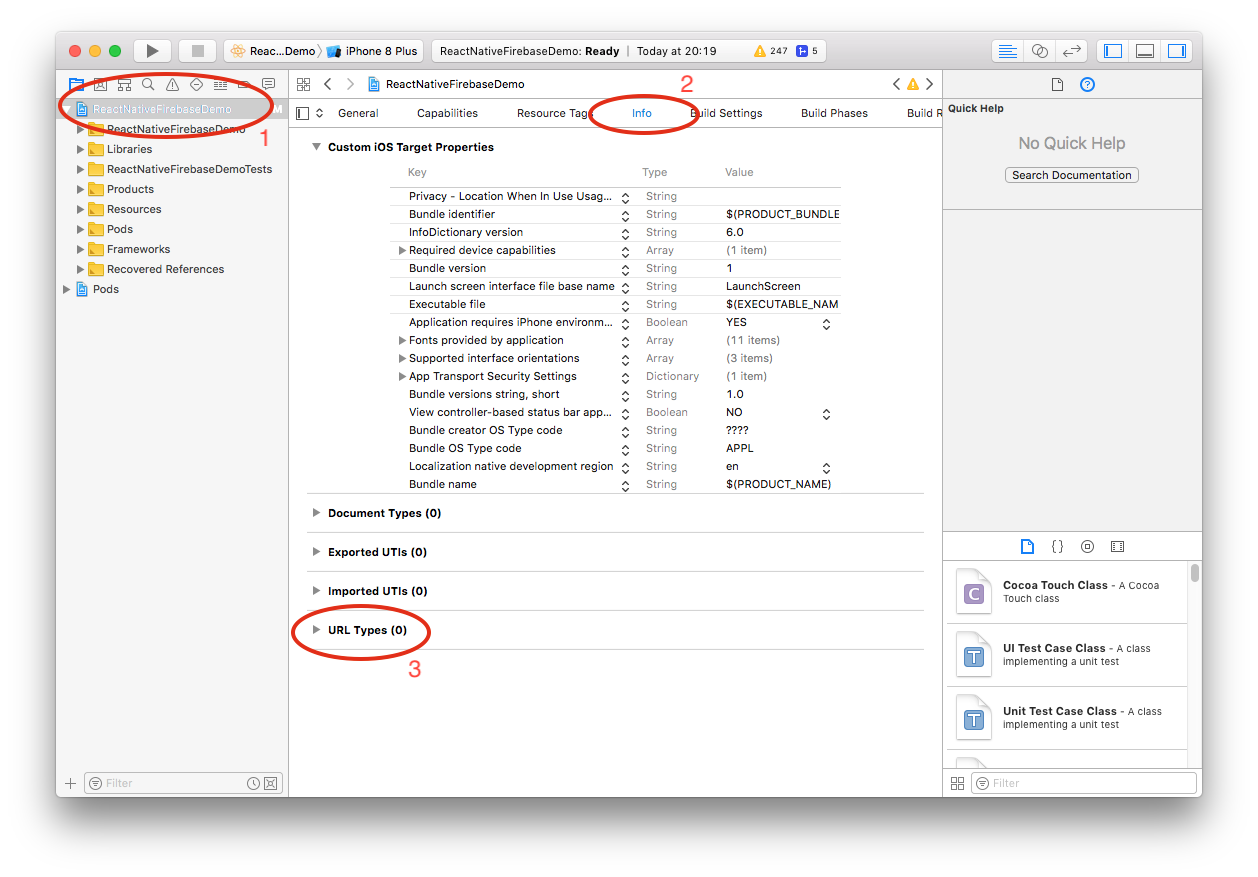
Navigate to URL Types
Open the URL Types configuration for your project:
- Select your project on left hand side file tree
- Select the Info tab on the middle pane
- Expand the URL Types section header
Create a URL Type and Scheme
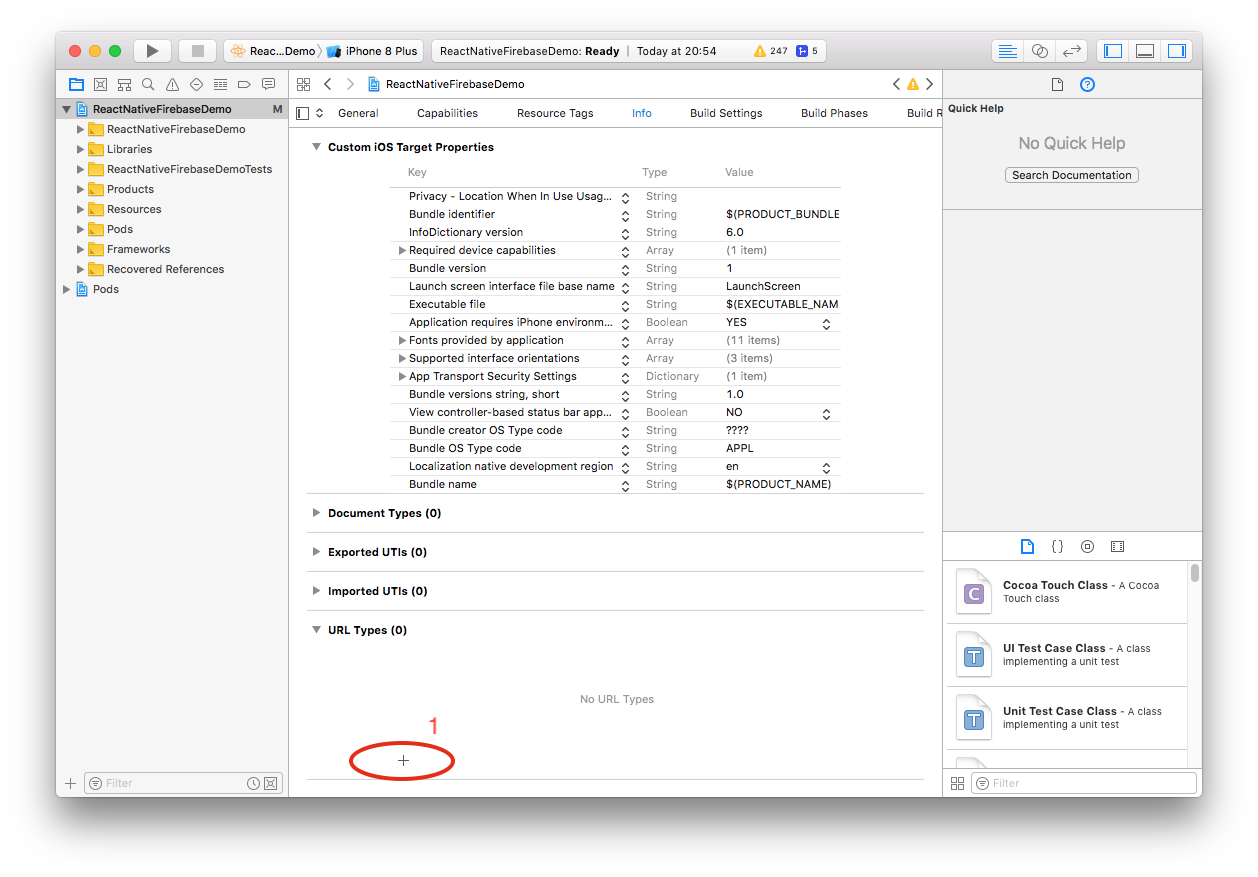
After navigating to the URL Types section of your Xcode workspace you can now add a new URL type.
Add new URL type (+)
- Click the Add items plus (+) icon at the bottom of the URL Types section:
Configure the new URL Type
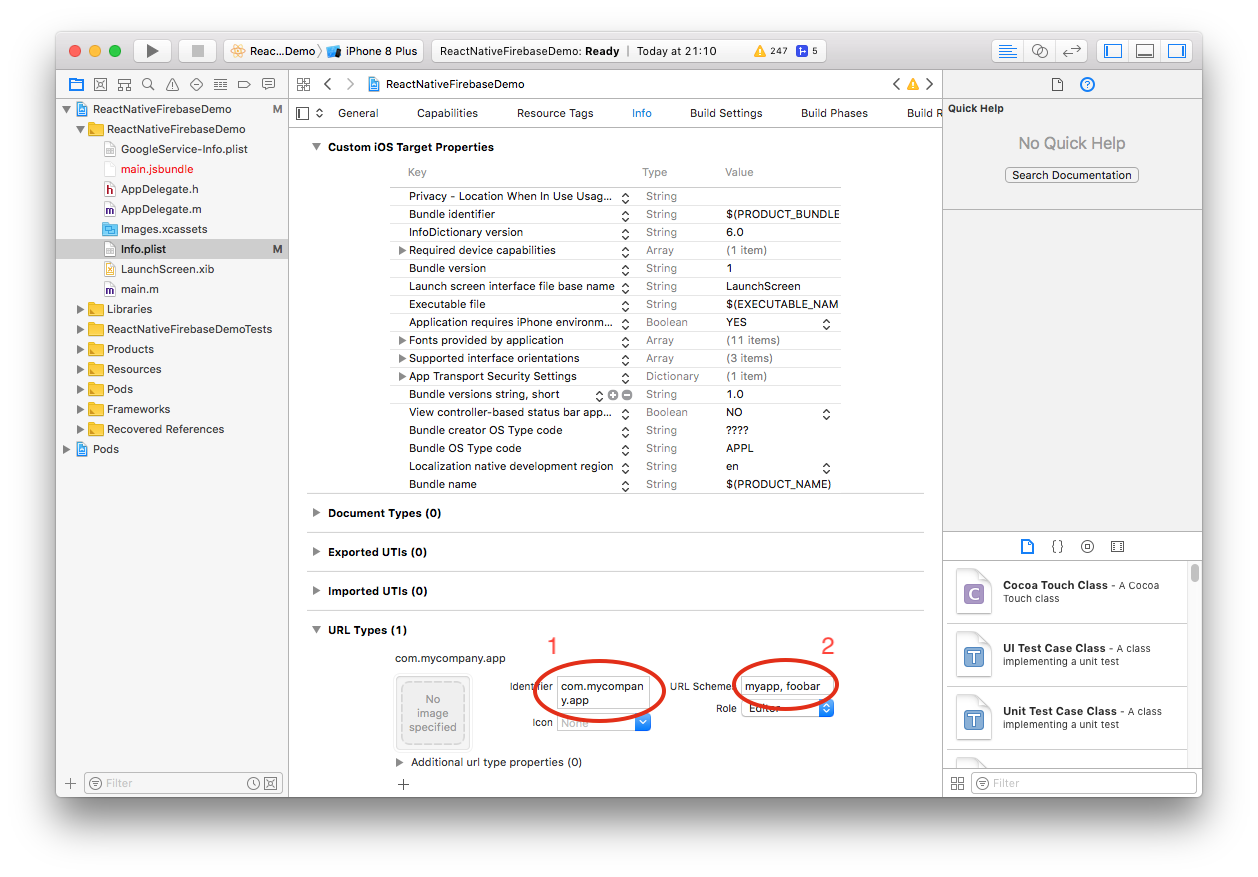
- Input the
Identifiervalue; The Identifier is normally the same as your Bundle Identifier which is usually the reverse of the domain for your app e.g. com.mycompany.app. - Input the
URL Schemesvalue - this can be a comma delimited list of values; For example if you set this to myapp,foobar then your app will then accept urls from myapp://_ and foobar://_.
Icon and Role can be left to use the defaults unless you need to change these.